
Download Your Driving Licence Online (LL & DL)
Three ways to get a copy of your Learner’s or permanent Driving Licence, the official Sarathi print service, DigiLocker, and the mParivahan app.
Quick answer
On Sarathi, print your LL from Learner Licence → Print Learner Licence (Form3), or your permanent DL from Driving Licence → Print Driving Licence, using your application/licence number and date of birth. For a phone-friendly digital copy, fetch it into DigiLocker or view it in the mParivahan app instead.
What you’ll need
- For the Sarathi print service: your Application Number or Licence Number, plus your date of birth
- For DigiLocker: a DigiLocker account (sign up free with your Aadhaar-linked mobile number) and your DL number
- For mParivahan: the app installed on your phone and your DL number
- A digital copy from any of these is legally valid, you don’t need to carry the physical card once it’s in DigiLocker or mParivahan
Need to apply for or renew your licence first? See our driving licence guide for every other step.
Download your Learner’s Licence (LL)
-
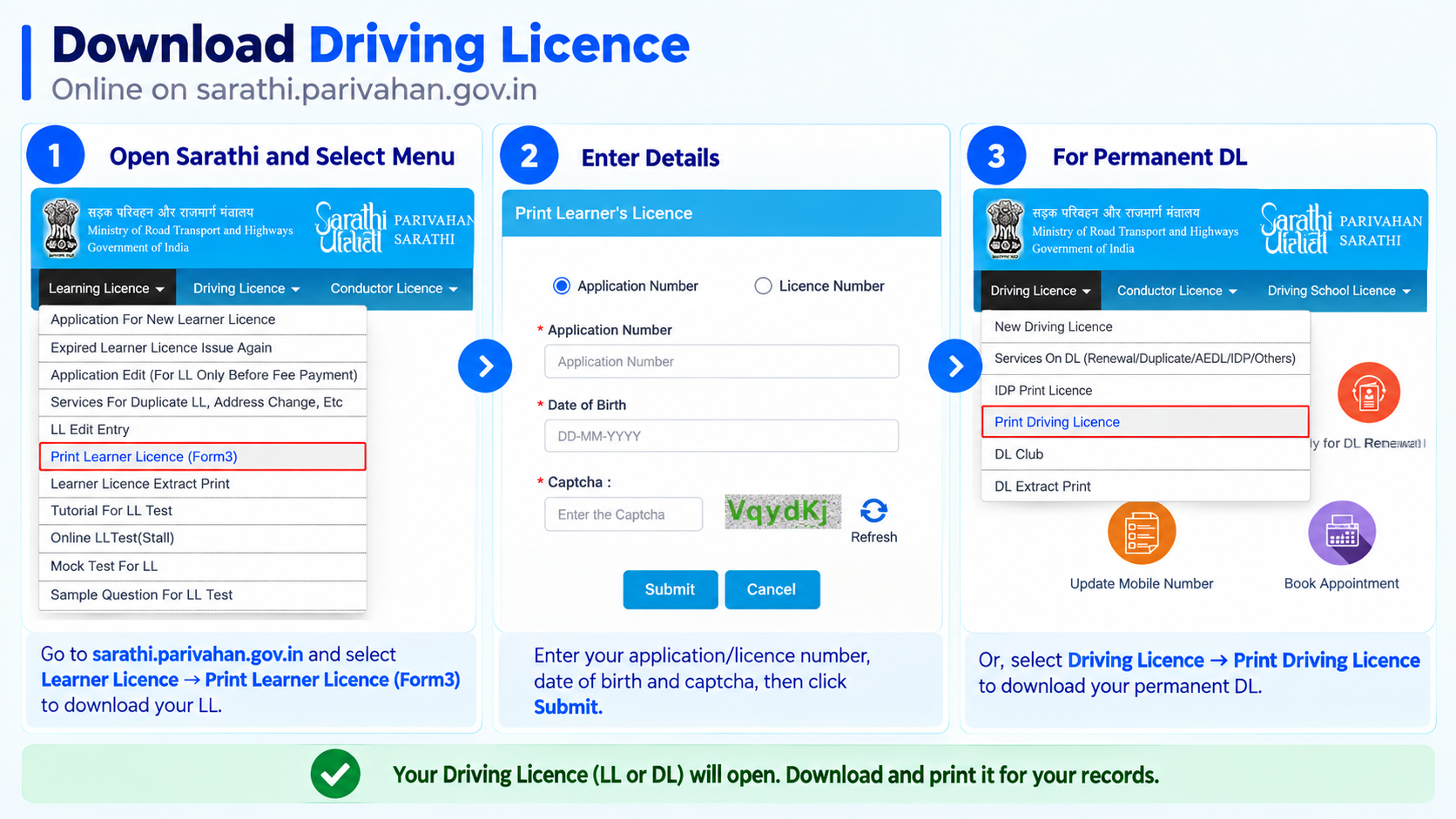
Go to the Sarathi portal and select your state
Open sarathi.parivahan.gov.in and pick your state.
-
Choose “Print Learner Licence (Form3)”
From the Learner Licence menu in the top nav, click Print Learner Licence (Form3).
-
Choose Application Number or Licence Number
Pick whichever you have, enter it along with your Date of Birth and the captcha, then click Submit.
-
View and download
Your Learner’s Licence opens as a printable copy, download or print it from here.
Download your permanent Driving Licence (DL)
-
Go to the Sarathi portal and select your state
Same starting point, sarathi.parivahan.gov.in, pick your state.
-
Choose “Print Driving Licence”
From the Driving Licence menu in the top nav, click Print Driving Licence, it’s a separate option from “Services On DL” (which is for renewal, duplicate, AEDL and similar requests).
-
Enter your DL Number and date of birth
Fill in your Driving Licence Number, Date of Birth and the captcha, then submit.
-
View and download
Your DL opens as a printable copy, download or print it from here.
Download via DigiLocker
Good for keeping a permanent, always-accessible digital copy on your phone.
-
Open DigiLocker and sign in
Use the DigiLocker app or website. Sign in or sign up with your Aadhaar-linked mobile number and OTP.
-
Search for “Driving Licence”
Under Issued Documents, search for Driving Licence from the Ministry of Road Transport and Highways (Parivahan).
-
Enter your DL number to fetch it
Enter your DL number and any other details asked. DigiLocker pulls your licence details directly from the Sarathi database and links it to your account.
-
View or download anytime
Once linked, your DL stays in your Issued Documents, open it anytime, even without internet after the first fetch, and download the PDF whenever needed.
Download via the mParivahan app
The official Ministry of Road Transport and Highways app, useful if you already use it for RC and challan info too.
-
Install mParivahan
Download the official mParivahan app from the Play Store or App Store.
-
Add your DL
Open the app’s DL section and add your licence by entering your DL number.
-
View your virtual DL
Your DL shows up as a virtual card in the app, this is accepted as a valid copy, similar to a DigiLocker document.
Which method should you use?
All three are officially valid, pick based on how you’ll actually use the copy.
| Sarathi PDF | DigiLocker | mParivahan | |
|---|---|---|---|
| Best for | A one-time printed copy | Long-term digital storage | Quick on-the-go verification |
| Works without internet | No, print it once online | Yes, once fetched | Yes, once added |
| Also shows RC & challans | No | No, DL only | Yes, in the same app |
| Accepted by traffic police | Yes, as a printout | Yes, as valid digital proof | Yes, as valid digital proof |
Under the Motor Vehicles Act, a digital document shown through DigiLocker or mParivahan carries the same legal weight as the physical card, a screenshot of it doesn’t, so open the actual app when asked to show it.
Mistakes that slow this down
- Using the “Services On DL” menu when you just want to print, that’s for renewal/duplicate/AEDL requests, not a plain download
- Trying to fetch a DL on DigiLocker with a mobile number that isn’t linked to your Aadhaar, the OTP-based signup needs that link
- Mixing up Application Number and Licence Number on the LL print form, pick the one that matches what you actually have
- Assuming a screenshot of the app counts as a valid copy, always carry or show the actual DigiLocker/mParivahan document, not a screenshot
Common questions
Is a DigiLocker or mParivahan copy legally valid?
Yes. Under the Motor Vehicles Act, a digital document in DigiLocker or mParivahan is treated the same as the physical card for verification purposes.
Which is better, DigiLocker or mParivahan?
Both work fine. DigiLocker is a general government document locker (useful if you already store other documents there), mParivahan is transport-specific and also shows RC and challan details in one place.
I don’t have my application number, what now?
If you have lost your application number, you can find it on Sarathi with your name, date of birth and mobile number, see our find application number guide. If you have lost the licence card itself, see our duplicate licence guide.
Can I download my DL if it’s expired?
You can still print a copy of what’s on record, but an expired DL isn’t valid to drive with, renew it first if you plan to use it.
Ready to download?
This takes you straight to the official Sarathi portal. myrtobuddy.com is not affiliated with it.